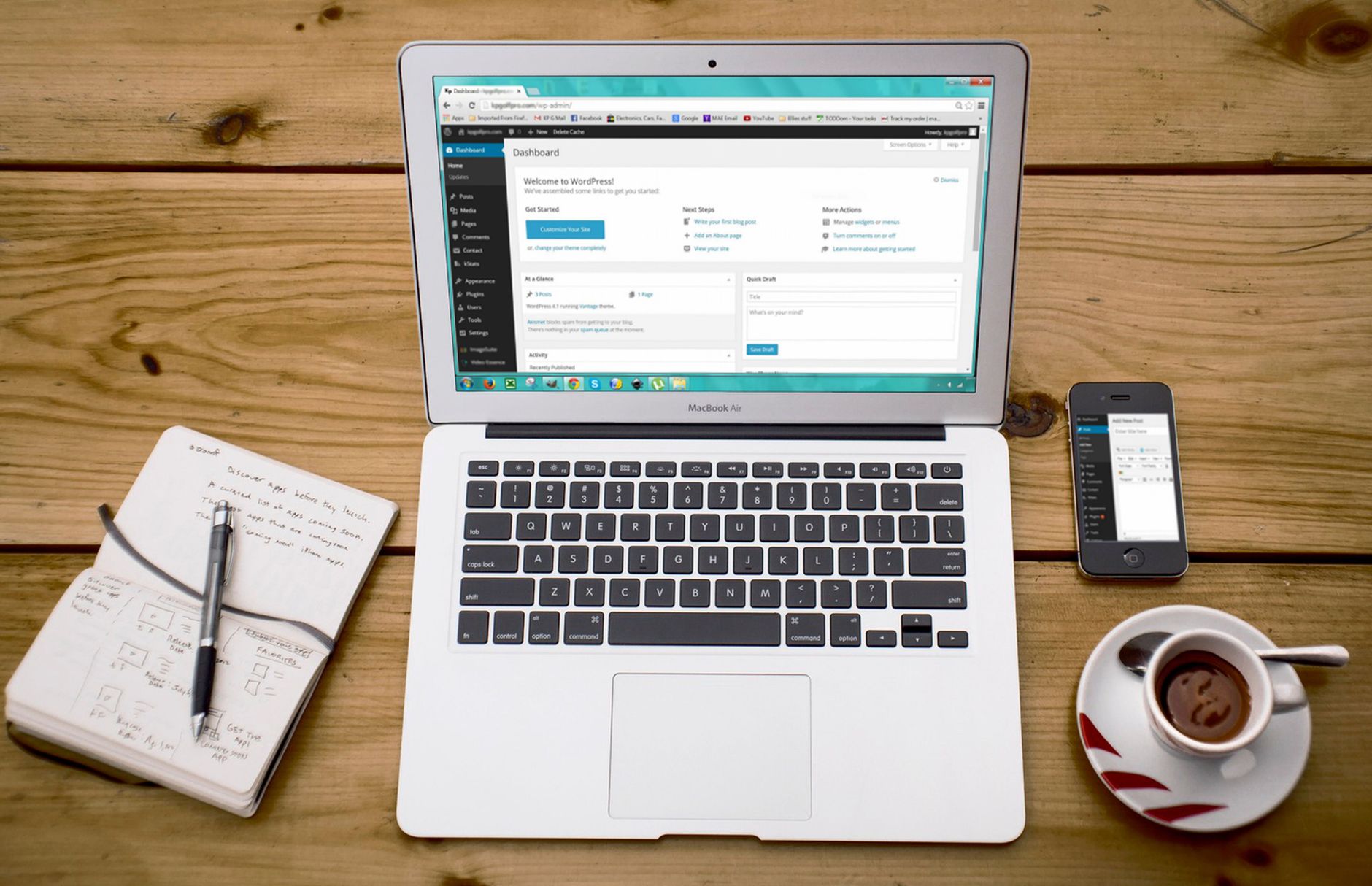
What Can a CMS Do for My Business?
A content management system lets you update your website without calling a developer. Here's what that actually means for your business — in plain English.
Intro
You’ve probably heard the term CMS thrown around — content management system. Maybe a developer recommended one. Maybe a vendor tried to sell you one. But what does it actually do for your business?
Here’s the simplest way to think about it: a CMS is a tool that lets you change your website without knowing how to code.
Without a CMS, updating your website means emailing a developer, waiting for them to get to it, paying for their time, and hoping they understood what you wanted. A simple text change becomes a $200 line item. A new blog post takes three days of back-and-forth.
With a CMS, you log in, make your changes, click publish, and they’re live. That’s it.
This article covers what a CMS can actually do for your business, the different types available, and how to choose the right one without getting sold something you don’t need.
What Is a CMS, Really?
At its core, a CMS is two things:
- A place to store your content — text, images, videos, documents
- A way to display that content on your website
The CMS separates what your content says from how it looks. You write your content in a dashboard that looks a lot like a word processor. The CMS automatically formats it and displays it on your site according to your design.
Think of it like a restaurant menu. The dishes (your content) are prepared in the kitchen (the CMS dashboard). The presentation on the plate (your website design) is handled by the chef (the CMS template). The two are connected, but changing the dish doesn’t require redesigning the plate.
The Business Problem
Your website is stuck.
Every time you need to make a change — update a price, add a team member, publish a blog post, announce a new service — you hit the same wall. You can’t do it yourself. You need a developer. And developers are expensive and busy.
This creates a few predictable problems:
Your website is always out of date. The price increase you announced two months ago still isn’t reflected on your site. The new team member who started in January still isn’t on the “About” page. Your most recent blog post is from last year.
Every change costs too much. A developer charges $100-200 an hour. Adding a simple page takes 2-3 hours. A blog post takes an hour. Before you know it, you’re spending thousands a month on changes that should cost nothing.
You can’t respond quickly. A competitor makes a move. A market shift happens. You want to update your messaging or launch a landing page. By the time the changes are made, the moment has passed.
The person who built your site is the only one who can update it. This is called vendor lock-in, and it’s a trap. You’re dependent on one person or agency for even the smallest changes. That gives them all the leverage.
A CMS fixes all of this.
Why It Matters
A CMS transforms your website from a static brochure into a living part of your business.
Your team can publish content directly. Marketing can launch a campaign page without waiting for engineering. Your CEO can write a blog post and publish it in five minutes. Your sales team can update case studies as soon as they close a deal.
Speed becomes a competitive advantage. When you can publish content in minutes instead of days, you can respond to market changes, launch campaigns, and share news faster than competitors who are still emailing their developer.
Costs become predictable. Instead of paying hourly for every change, you pay a fixed monthly fee for the CMS. Most are $30-300/month. The ROI is immediate if you make more than one or two changes a month.
You own your content. A good CMS stores your content separately from your design. If you want to redesign your site or move to a new platform, your content comes with you. You’re not locked in.
SEO is built in. Most CMS platforms handle the technical SEO basics automatically — clean URLs, meta tags, sitemaps, mobile responsiveness. You don’t need to be an SEO expert to have a site that search engines can find.
What a CMS Can Actually Do
Let me walk through the real capabilities, not the marketing fluff.
Content Creation and Editing
You write content in a visual editor. You can add text, images, videos, buttons, and layouts by dragging and dropping or using a simple toolbar. It works like Word or Google Docs. No HTML required.
Changes go through a workflow — draft, review, approve, publish. You can have multiple people working on content without stepping on each other.
User Permissions
You control who can do what. Marketing people can create and edit content. Managers can approve and publish. External contractors can contribute to specific sections. Nobody can accidentally delete your homepage.
This matters more than you’d think. Without permissions, someone’s well-intentioned “quick update” can break your entire site.
Templates and Design
Your website’s design is separate from its content. You choose a template (or have one custom-built), and the CMS consistently applies it across all your pages. Change the template, and your entire site gets a new look without touching the content.
This means non-technical team members can add pages that look professional because the design is already handled.
SEO Tools
Most CMS platforms automatically handle the technical SEO that small businesses struggle with:
- Clean, readable URLs (
/blog/what-is-a-cmsinstead of/page.php?id=392) - Automatic sitemaps that tell Google about your pages
- Meta title and description fields for every page
- Mobile-responsive design
- Fast page loading
Multisite Management
If your business runs multiple websites — different brands, multiple locations, international sites — a good CMS lets you manage them all from one dashboard. You can share content across sites, enforce brand consistency, and see analytics unified.
This is a hidden need for growing businesses. You start with one site, then launch a second, then a third, and suddenly you’re managing three separate logins, three separate designs, and three separate sets of content.
Integrations
Modern CMS platforms connect to your other business tools — CRM, email marketing, analytics, e-commerce. A form submission on your website can automatically create a contact in your CRM. A new blog post can trigger an email to your subscribers.
Analytics
You can see which pages are getting traffic, where visitors are coming from, and how they’re interacting with your content. This data helps you understand what’s working and what’s not.
Types of CMS
Not all CMS platforms are the same. Here’s the landscape, simplified.
Traditional CMS (WordPress, Drupal, Joomla)
How it works: The CMS manages both content and presentation. You install it on a server, choose a theme, and add content through a dashboard.
Best for: Most small to medium business websites. Blogs, company sites, news sites, basic e-commerce.
Pros: Massively popular. Thousands of themes and plugins. You can find developers anywhere. WordPress alone powers over 40% of the web.
Cons: Can get slow if you add too many plugins. Security requires regular updates. Custom functionality requires PHP development.
Cost: Free software, but you pay for hosting ($10-50/month), themes ($0-200), and plugins ($0-200/year each).
Headless CMS (Contentful, Strapi, Sanity)
How it works: The CMS only manages content. Your developers build the frontend however they want — any framework, any device, any channel. The CMS delivers content through an API.
Best for: Organizations with custom frontend needs. Mobile apps, single-page applications, multi-channel publishing (web + mobile + IoT).
Pros: Maximum flexibility. Content can be published anywhere. Great developer experience.
Cons: Requires development work to set up the frontend. Not suitable for non-technical teams to manage alone.
Cost: Free tiers available. Paid plans start at $50-300/month for teams.
Website Builders (Wix, Squarespace, Webflow)
How it works: All-in-one platform — hosting, design, and content management in one package. You build your site using visual tools.
Best for: Small businesses that want to build and manage their site entirely without developers.
Pros: Easiest to use. No technical skills required. Everything is included.
Cons: Limited customization. Difficult to migrate away. Can become expensive as you grow.
Cost: $15-50/month all-inclusive.
Static Site Generators (Astro, Hugo, Next.js)
How it works: Content is managed separately (often in Markdown files), and a build process generates static HTML pages. The result is extremely fast and secure.
Best for: Performance-critical sites, blogs, documentation, marketing sites.
Pros: Blazing fast. Extremely secure. Cheap hosting (often free). Great developer experience.
Cons: Requires development skills. Content management is less visual than traditional CMS.
Cost: Free. You only pay for hosting ($0-20/month).
How to Choose
The right CMS depends on who will be using it and what you need it to do.
Ask these questions:
- Who will create and manage content? (Technical or non-technical team?)
- How often will you publish new content?
- Do you need e-commerce, forums, or other specialized features?
- Will you have multiple sites to manage?
- Do you have a developer available to set up and maintain the CMS?
If your team is non-technical and you need a simple site: Go with a website builder like Squarespace or Webflow. You can launch quickly and manage everything yourself.
If you have some technical support and want flexibility: Use WordPress. It’s the most popular for good reason — it works for almost everything.
If you need maximum performance and have development resources: Use a headless CMS or static site generator. You’ll get better performance, security, and flexibility.
If you’re not sure: Start with a website builder. You can always migrate to something more powerful later. The important thing is to stop paying developers for every text change.
What It Costs
| Type | Monthly Cost | Setup Cost | Technical Skill Needed |
|---|---|---|---|
| Website Builder | $15-50 | $0-500 | None |
| WordPress | $10-50 (hosting) + plugins | $500-5,000 (setup/design) | Low to medium |
| Headless CMS | $50-300 | $10,000-50,000+ (frontend dev) | High |
| Static Site Generator | $0-20 (hosting) | $5,000-20,000 (setup) | Medium |
The ongoing cost of a CMS is almost always less than what you’re paying a developer for monthly updates. If you’re making more than two changes a month, a CMS pays for itself.
Common Mistakes
Picking the CMS before defining the requirements. A client once asked me to build their site on a specific CMS because a friend recommended it. Turns out it didn’t have the e-commerce features they needed. We had to migrate six months later. Define what you need first, then pick the platform.
Over-customizing. The more you customize a CMS, the harder it is to upgrade. Every custom plugin, every modified theme, every hack — they all create maintenance debt. Use existing solutions when possible.
Neglecting security. WordPress is the most hacked CMS because it’s the most popular. Keep everything updated, use strong passwords, limit login attempts, and use a security plugin. It’s not difficult, but it’s essential.
Ignoring content strategy. A CMS doesn’t magically create good content. You still need a plan for what to write, who will write it, and how often to publish. The CMS is the tool, not the strategy.
Choosing based on what’s popular instead of what fits. WordPress works for most sites, but not all. A headless CMS might be trendy, but do you need it? Pick the tool that matches your team, your budget, and your requirements.
How To Get Started
-
List what you need your website to do. Write down the pages you need, how often you’ll update them, who will make the changes, and any special features (e-commerce, membership, forums).
-
Decide who will manage the CMS. If your marketing coordinator needs to publish content, choose a CMS they can learn in an afternoon. If you have a developer, you have more options.
-
Try before you buy. Most CMS platforms have free trials. Create a test site, add some content, and see if it feels right. Have the person who will actually use it do the testing.
-
Plan the migration. If you have an existing website, plan how content will move from the old site to the new one. Content migration is often the hardest part of switching CMS platforms.
-
Start simple. Launch with the essential pages and features. Add complexity as you need it. A CMS that works well for five pages will work for fifty.
Conclusion
A CMS is one of those investments that seems optional until you have one, and then you wonder how you lived without it. It turns your website from a static expense into a dynamic asset that your team can use to grow the business.
The best CMS is the one your team will actually use. Not the most powerful, not the most popular — the one that makes it easy to publish good content consistently.
Start with something simple. Make sure your team can use it. And stop paying a developer to change text on your website.
Re-evaluating your CMS strategy?
We help businesses choose, implement, and customize CMS platforms that make content management effortless.
Discuss your CMS needsAbout Microbian Systems
We are a full-service software consultancy helping startups and small to medium enterprises succeed by delivering modern, scalable solutions across web, desktop, and mobile. Our team excels in designing complex systems but we also know when simplicity wins. We build secure, performant applications tailored to each client's growth stage.